1The board in one page
The Showcase Board is the shop schedule. Every customer order is one job card. Sales picks when it has to deliver by; the board lines the jobs up by that date, works out when each one gets through the shop, and warns you before anything ships late.
Every job moves through seven stages
Design and Order are lead time in working days, before the job reaches the floor. Cut, Weld, Paint, Assemble use shop hours. Paint comes before assembly. Ship is a 3-working-day buffer after assembly for crating and loading; its last day is the planned ship date.
How the board decides the dates
| Rule | What it means for you |
|---|---|
| Deliver-by date sets the order | The job due soonest is worked first. Nobody has to sort the list. A job dragged by hand keeps its spot (📌). |
| Shop capacity is fixed | The shop has a set number of hours per week (240 h = 6 men × 40 h). Work is filled into the days in order until the hours run out. |
| Two jobs share the floor | One job gets at most half the shop on any day, so two jobs are always moving side by side. |
| Lead time comes first | Cutting can't start until Design and Order days have passed (unless they are marked complete). |
| Hours come from Rippling | The crew clocks in on a job's PO and stage. The first hours on a stage mark it started. |
| Re-planned all the time | Every change re-plans the whole board at once, and again every night at 1:10 am so the dates follow the calendar. |
| It learns | When a job ships, what each stage really took teaches its machine type. The next estimate is closer. |
The pages
| Page | Use it to |
|---|---|
| Board | Every open job in order on a timeline, with the headline numbers on top. |
| Load | Shop hours per week by stage, and which stage is the bottleneck. |
| Calendar | Appointments, deliveries and Deliver-by dates by month. |
| How long? | A ship date for an order before it's sold, and who it would bump. |
| Hours | Hours read from Rippling, and any that didn't match a job. |
| Shipped | Closed jobs with their actual shop hours. |
| Help | This manual. Open to anyone; search box on top. |
| Admin | Logins, machine types, Rippling, settings (admins only). |
2Getting started
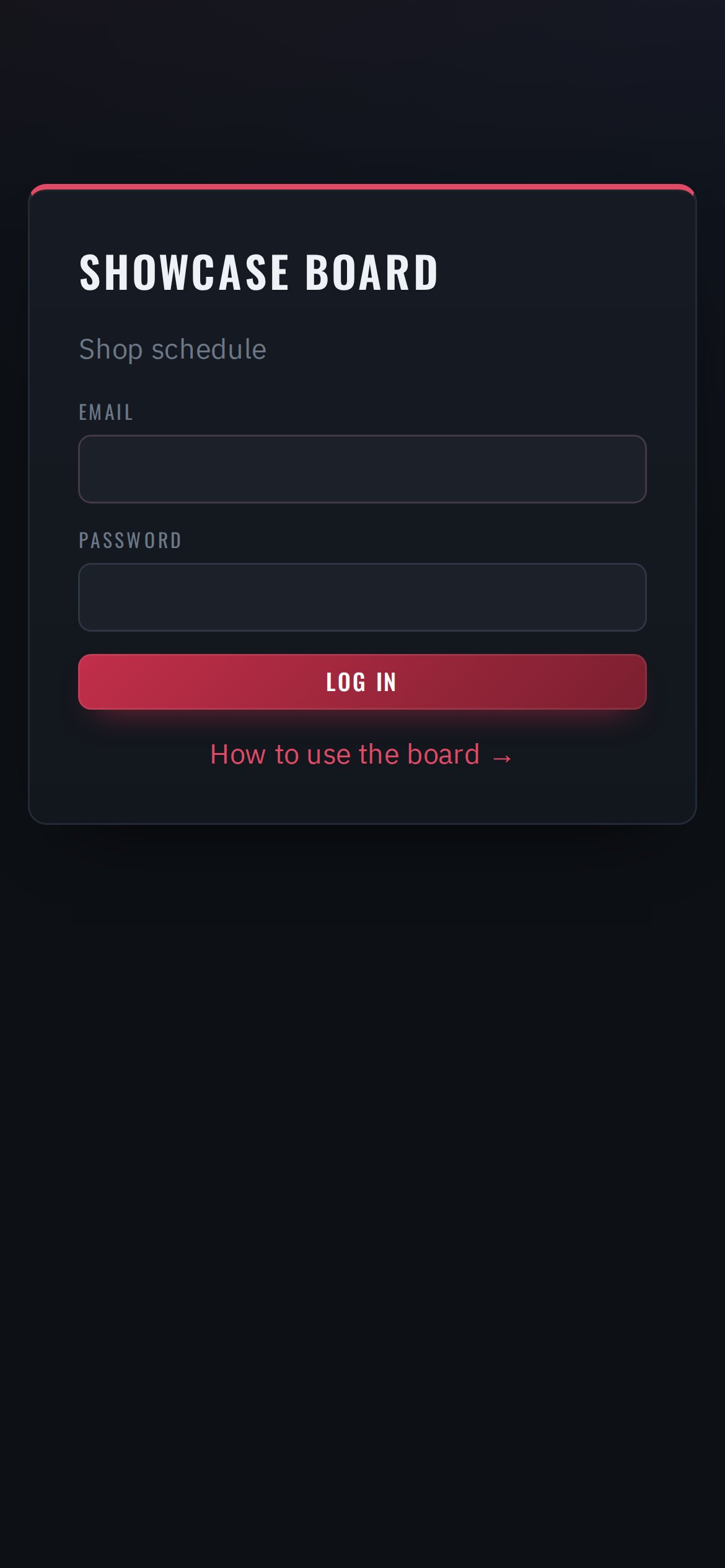
Log in
- Open the board in Chrome or Edge:
https://board.showcaseequipment.us - Type your email and password and click Log in.
- You stay logged in for 30 days on that computer or phone.
Log out, dark / light
Log out is top right. The ☀ / ☾ button switches between the dark and light look.
Who can do what
| Role | Typical person | Can do |
|---|---|---|
| admin | Andy | Everything, including Admin (logins, machine types, Rippling, settings). |
| sales | Sales | New jobs, Deliver-by dates, details, stages, drag on the board, ship, calendar. |
| manager | Shop manager | Everything sales can, plus hours. |
| purchasing | Wayne | View the board, hours. Gets the parts-ordering reminders. |
| viewer | Shop PC / TV, office | Look only. |
Anyone logged in can use How long?. The shop crew needs no login — they use the QR stickers (section 6).
Install the app
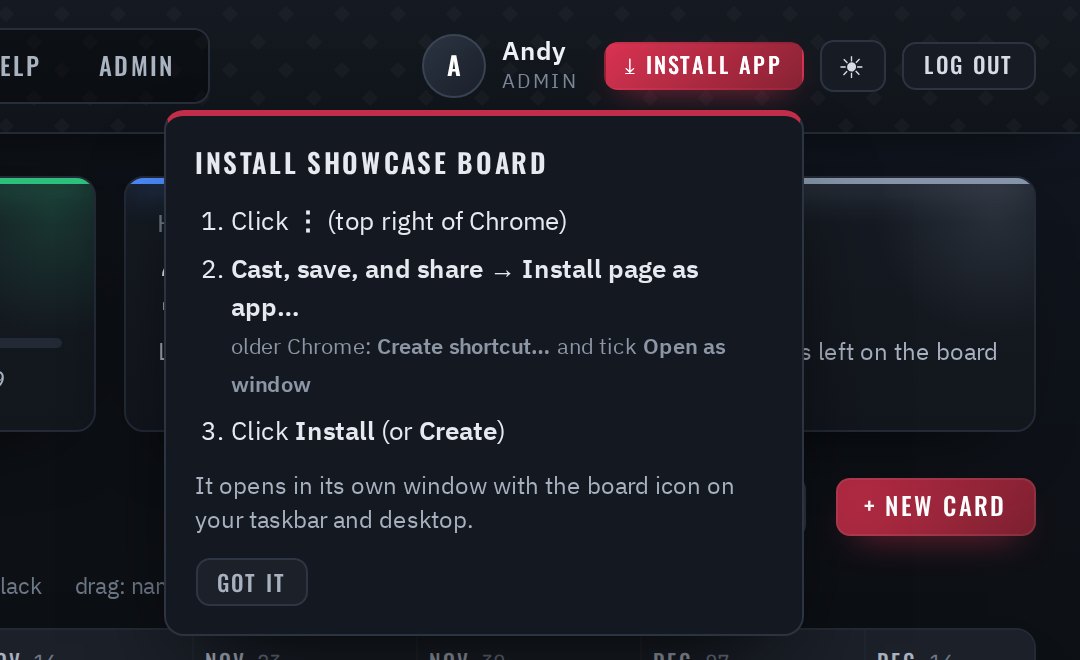
Installed, the board opens in its own window with its own icon on the desktop and taskbar. It's the same live board; updates arrive by themselves.
Click ⤓ Install app top right and confirm — one click in Chrome and Edge. If a browser can't, the button shows these steps instead:
| Device | Steps |
|---|---|
| Chrome (PC) | ⋮ → Cast, save, and share → Install page as app… → Install. Older Chrome: Create shortcut… → tick Open as window. |
| Edge (PC) | ⋯ → Apps → Install this site as an app. |
| iPhone | Safari: Share → Add to Home Screen. |
| Android | Chrome: ⋮ → Add to Home screen → Install. |
3Reading the board
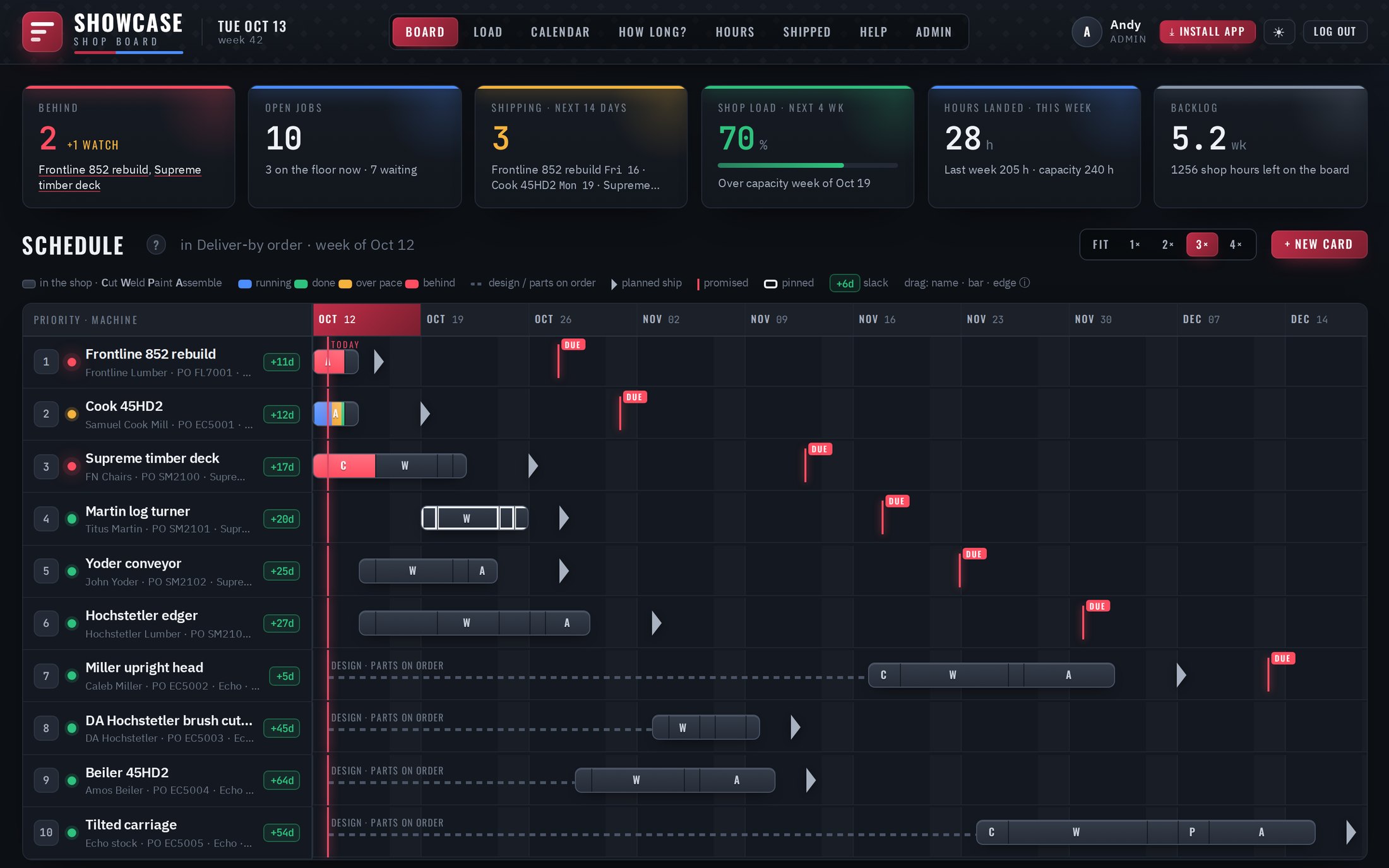
The headline tiles
Anatomy of a row
| # | Part | What it tells you |
|---|---|---|
| 1 | Position | Order of work, by Deliver-by date. A 📌 and red outline = placed by hand (section 5). |
| 2 | Status dot | Green on track · amber watch it · red behind (pulses). Red jobs also show in the Behind tile. |
| 3 | Slack | Days between planned ship and Deliver by: +16d room to spare, +2d tight (0–3), -3d late. "—" = no date. |
| 4 | Shop bar | The job's time in the shop. Letters: Cut Weld Paint Assemble. Thin lines are hand-offs. |
| 5 | Hours fill | Share of a stage's hours landed: running done over pace behind. |
| 6 | Runway | Dotted line = Design and/or Parts on order still open. Red if they should have started. |
| 7 | Flag ▶ | Planned ship day. If it's after Deliver by, LATE is written beside it. |
| 8 | DUE marker | The Deliver-by date promised to the customer. |
| 9 | Today line | Red vertical line; this week is highlighted in the header; weekends shaded. |
Zoom, refresh, details
- Zoom Fit fits the schedule to the screen; 1×–4× set the day width. Remembered per computer.
- Hover any bar, stage or marker for exact dates and hours.
- Auto-refresh every 20 seconds; holds off while you drag or type.
4New jobs & working with jobs
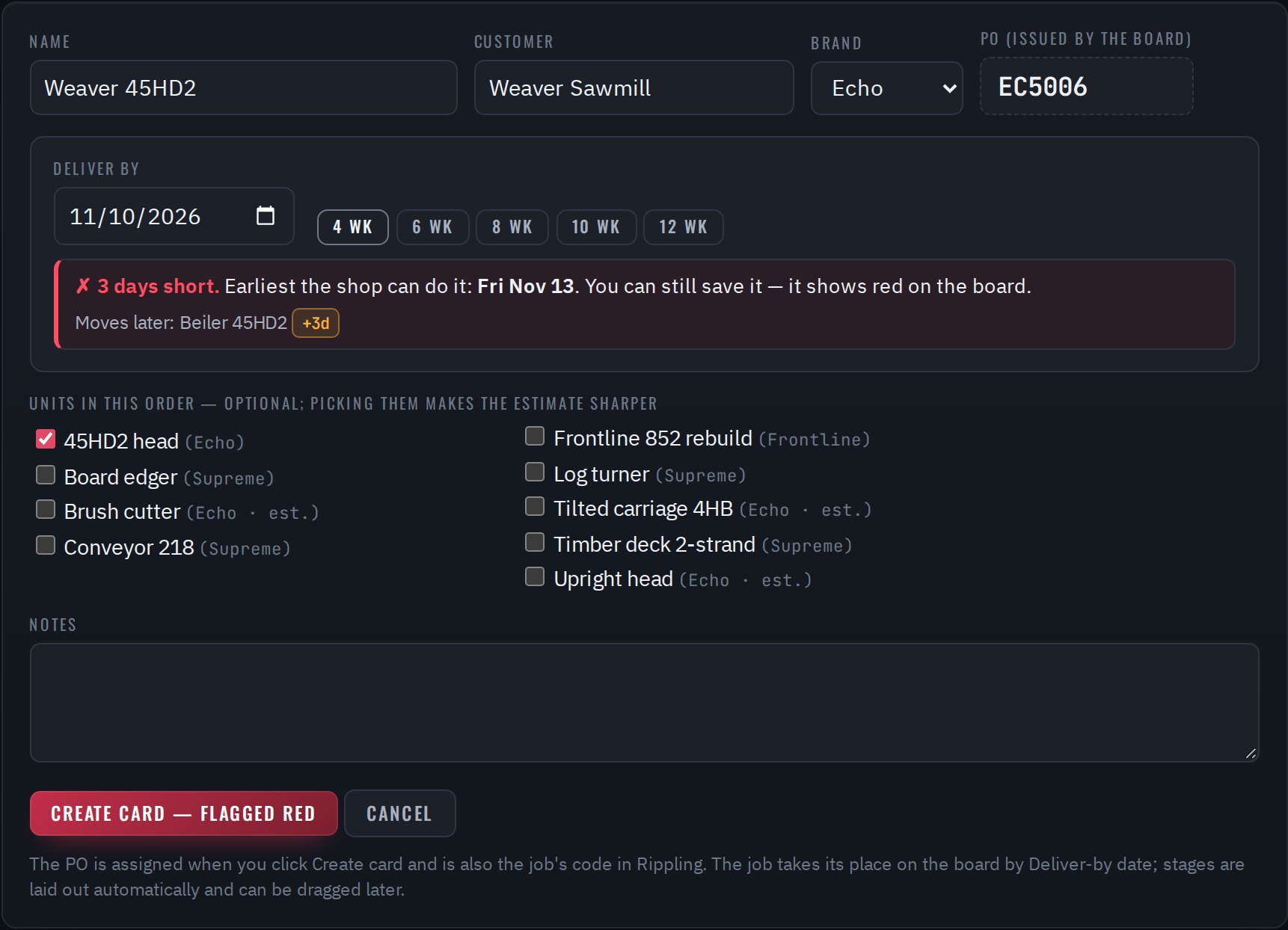
Add a new job
- On the Board click + New card.
- Name the job the way you say it (e.g. "Cook 45HD2"), add the Customer, pick the Brand — Echo, Supreme or Frontline.
- Pick Deliver by: a date, or click 4 wk…12 wk.
- Read the check under it: ✓ Fits with days to spare, or ✗ N days short with the earliest the shop can do it, and which jobs would move later.
- Tick the Units if you know them (optional — makes the estimate sharper).
- Click Create card. A job that's short can still be saved; it shows red on the board.
PO numbers
The board issues the PO when the card is created — nobody types it. Each brand counts up on its own and a number is never used twice, even if its job is deleted.
| Brand | PO |
|---|---|
| Supreme | SM2100, SM2101, … |
| Echo | EC5001, EC5002, … |
| Frontline | FL7001, FL7002, … |
The PO is also the job's code in Rippling (section 9). Older jobs keep the PO they had. Only an admin can correct a PO.
No units picked?
The board uses the average of that brand's machine types that have shipped at least 3 times, or the shop default if there are none yet. The card says the estimate is rough.
Open a job
Click a job's name anywhere. On top: Deliver by, the planned ship date and the slack. Below: Stages, Units, Details, the Rippling line, Hours and History (every change, who and when).

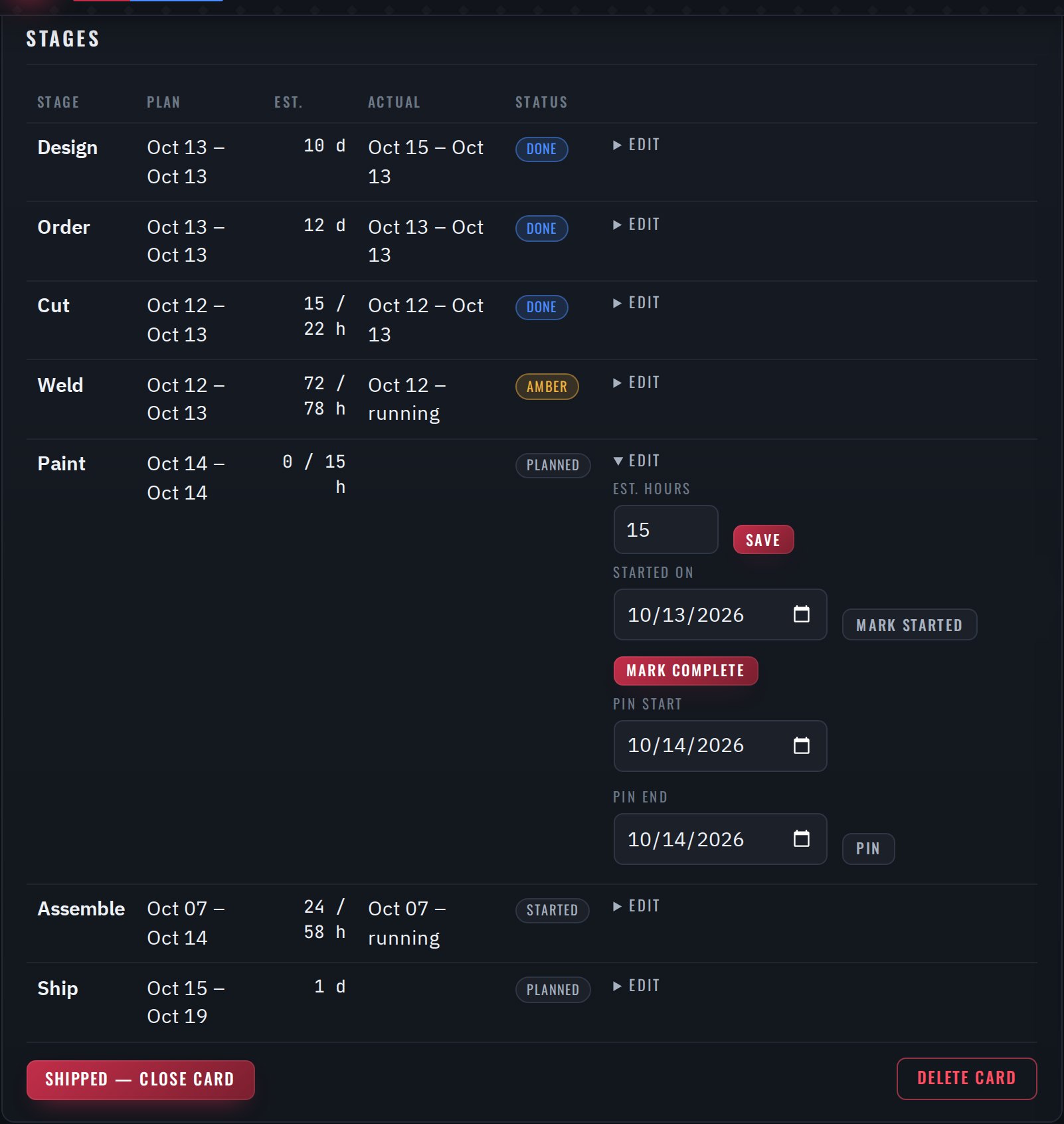
Update a stage
Click edit on its row:
| Button | Does |
|---|---|
| Save (hours / days) | Changes the estimate. |
| Mark started | Records the start (defaults to today). |
| Mark complete | Closes it today; the next stage moves up. |
| Reopen | Undoes a complete. |
| Pin / Unpin | Fixes or frees the stage's dates. |
Units and serial numbers
In Units: edit description, serial, max blade or weight and click Save; × removes one; Add unit adds one.
Serials are automatic: MODEL-YY-NNN, e.g. 45HD2-26-004.
Ship a job
- Open the job → Shipped — close card → confirm.
- It moves to Shipped, its Rippling code is marked SHIPPED, and its actual hours and days teach its machine types. Shipped by mistake? Shipped → open it → Reopen card.
5Moving things on the board
The board plans everything itself. When you know better, drag — whatever you drag is pinned and the rest plans around it.
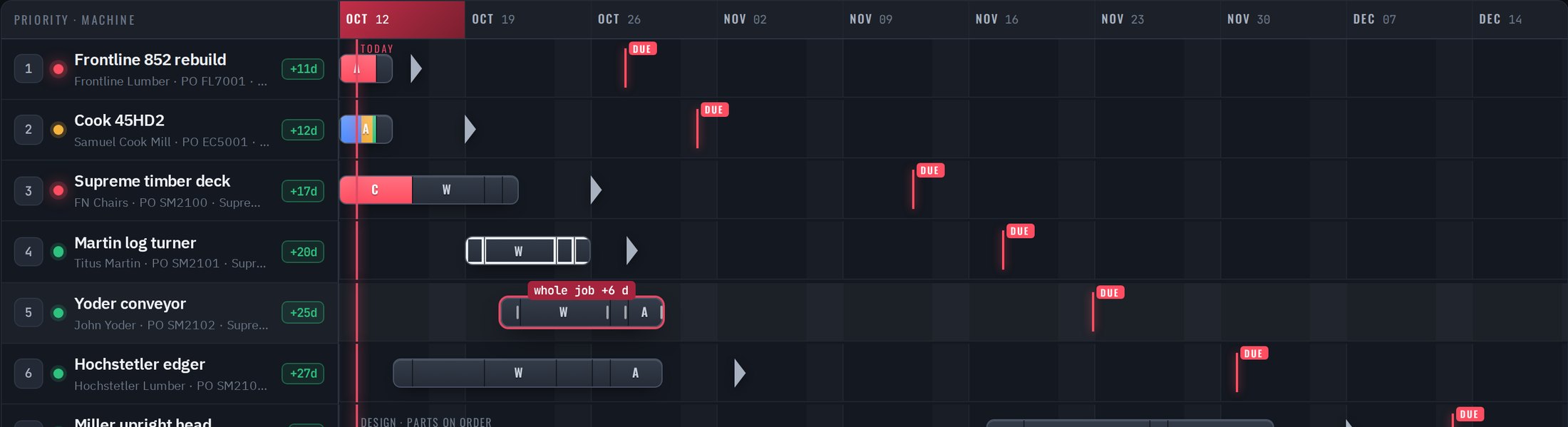
| Drag | What happens | Shows as |
|---|---|---|
| A job's name up or down | Changes its priority; it stays at that spot | 📌 on its number |
| A job's bar left or right | Moves all its unstarted shop stages that many days | Stages outlined in white |
| The right edge of a stage | Makes that stage longer or shorter | That stage outlined in white |
Undo it
Open the job and click Reset to auto (top of the card). It goes back to Deliver-by order and the board's own stage dates.
6Shop floor QR stickers
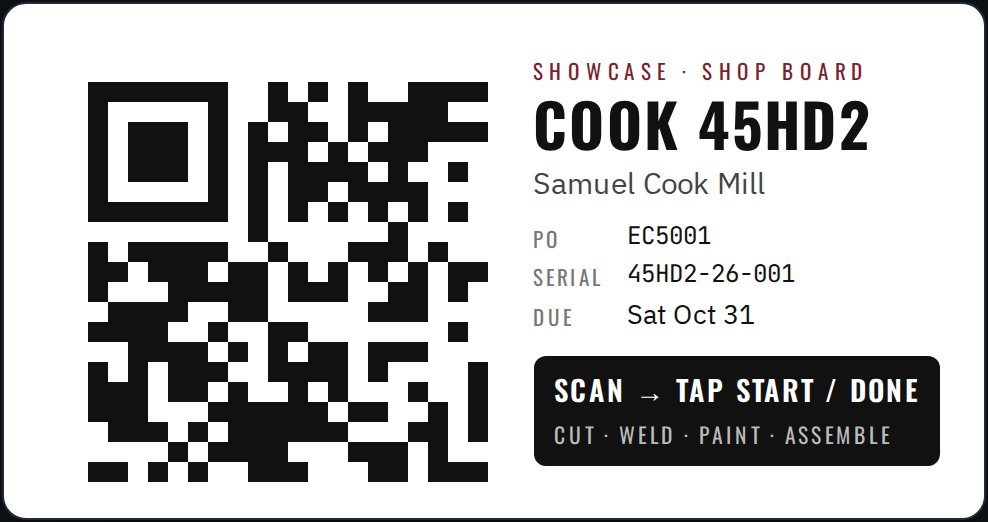
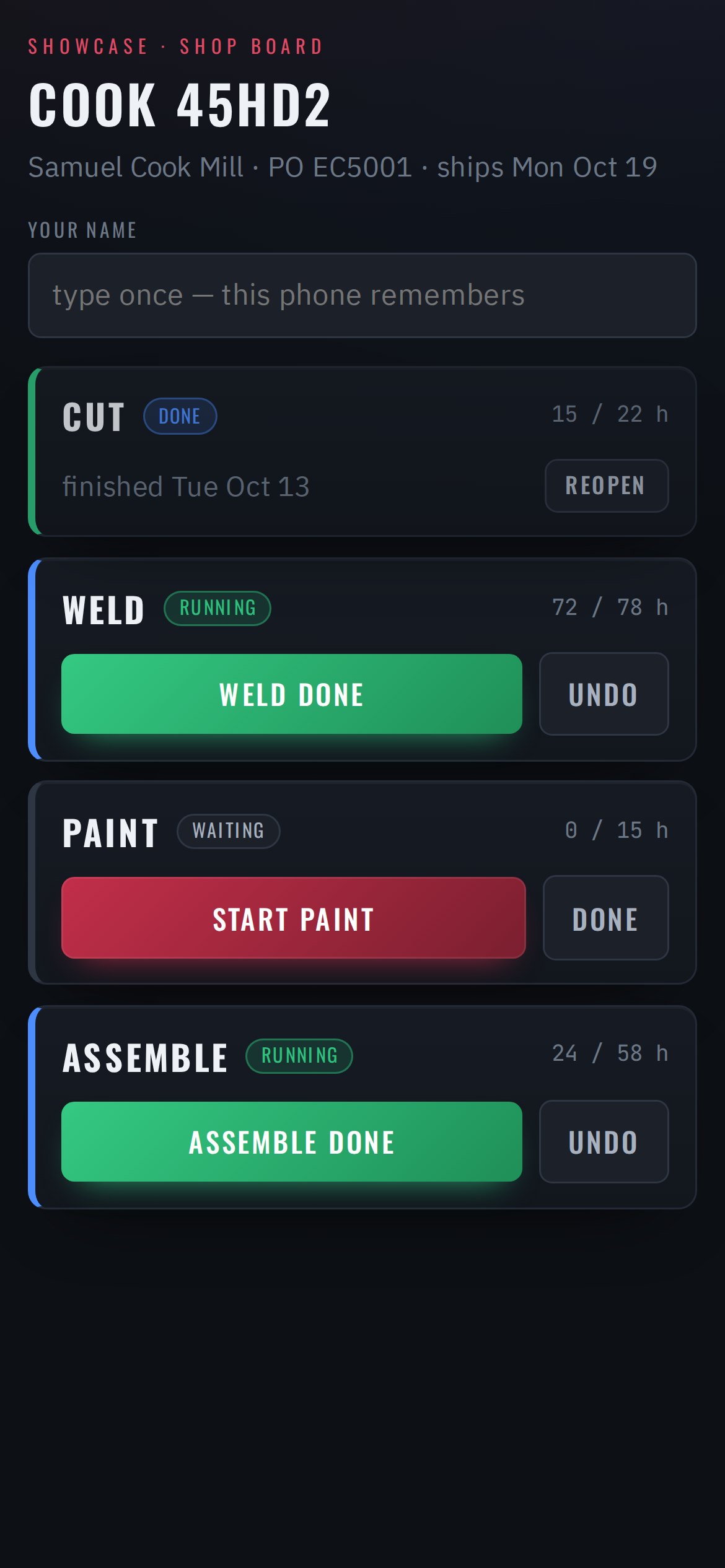
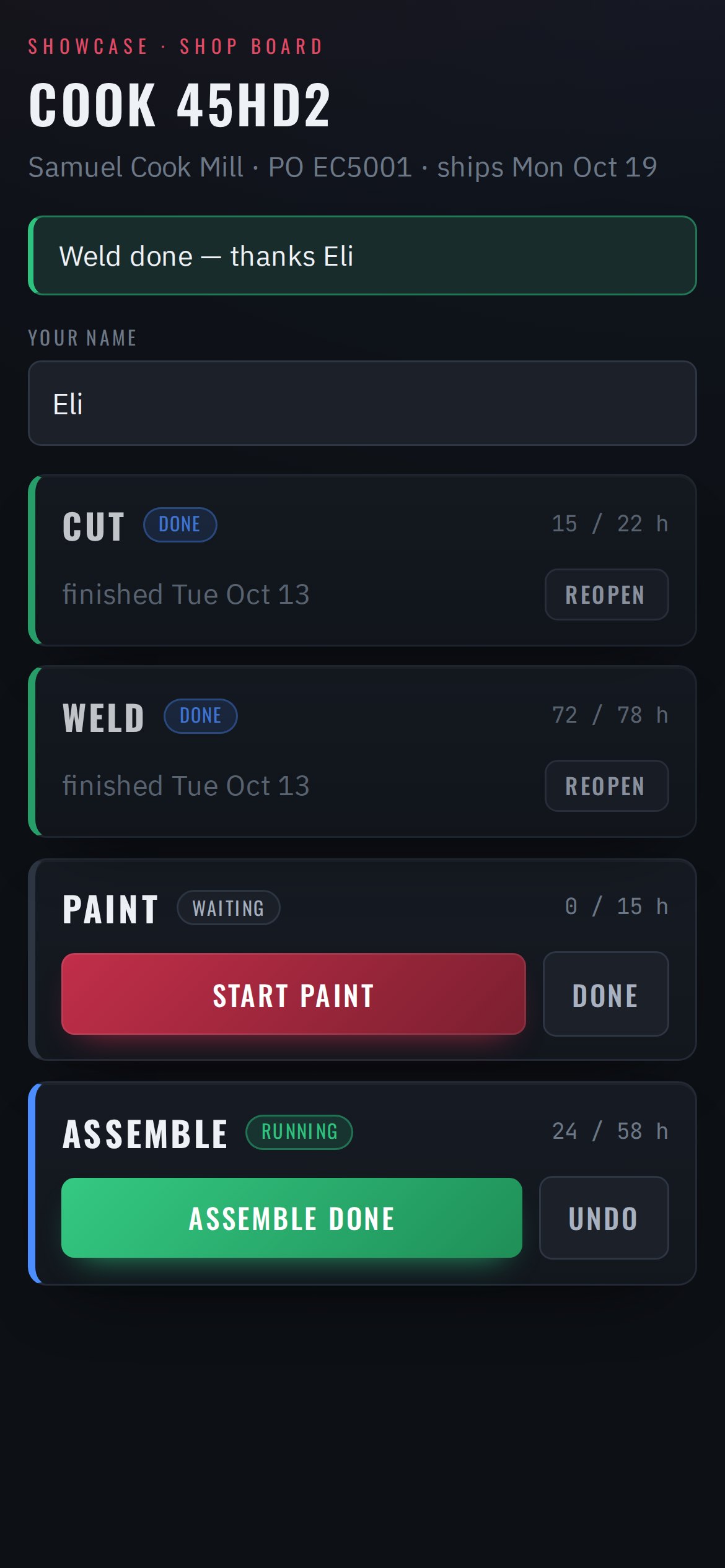
Each job gets a QR sticker. Anyone in the shop scans it with a phone camera and taps Start or Done for their stage — no login.
Print a sticker (office)
- Open the job → QR sticker (top right).
- Print. Only the sticker prints.
- Stick it on the machine, the cart or the traveler.
Use it (shop)
- Point the phone camera at the sticker and tap the link.
- Type your name the first time; the phone remembers it.
- Find your stage — Cut, Weld, Paint or Assemble.
- Tap Start when you begin, Done when it's finished. Wrong one? Undo.
7How long? — quoting
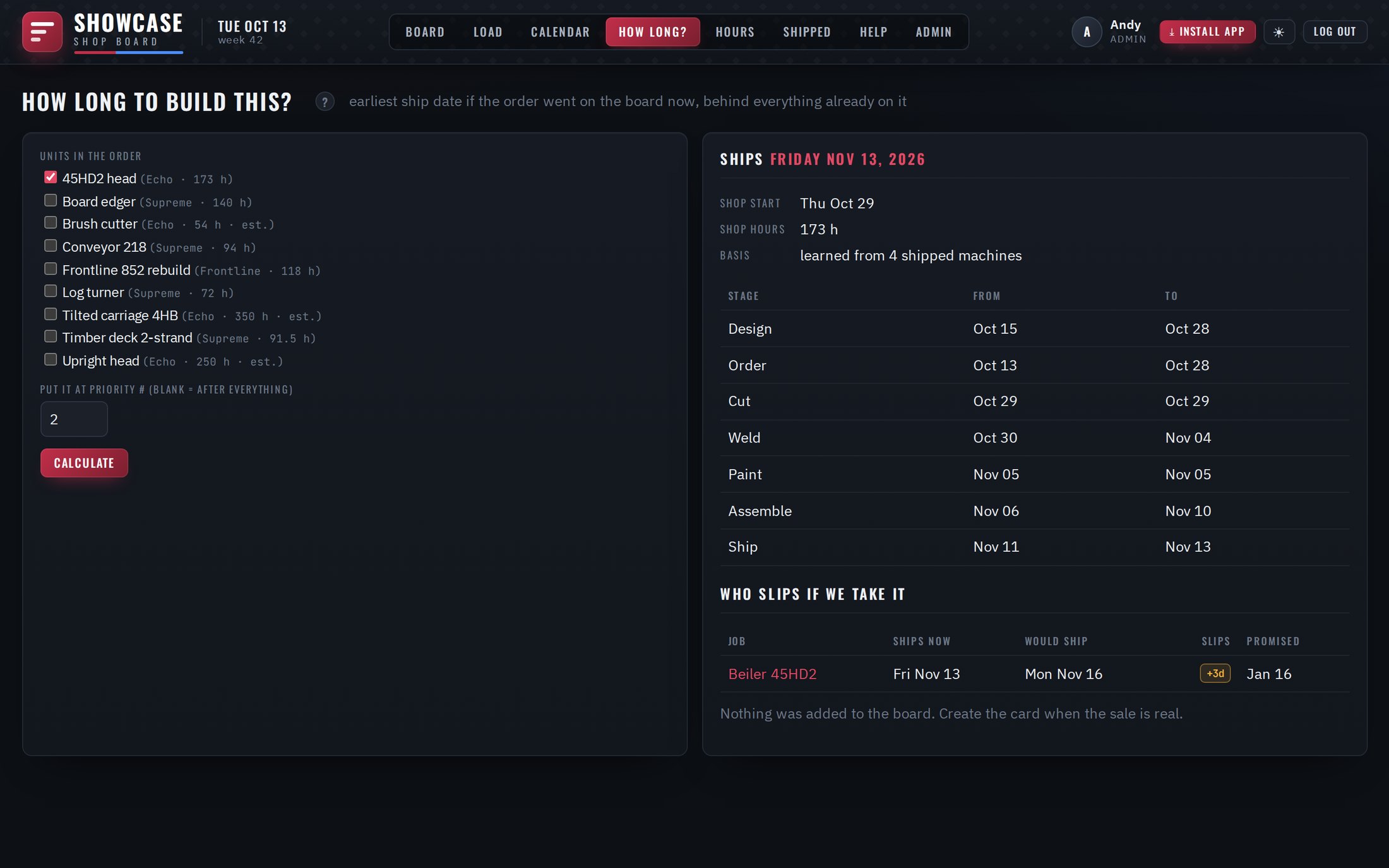
- Click How long?.
- Tick the units. "(est.)" = that type hasn't shipped 3 times yet.
- Priority #: blank = behind everything; a number = what if it jumps the line.
- Calculate.
You get the earliest ship date, shop start, hours, each stage's dates, and Who slips if we take it — every job that moves later, by how many days, and any that would go late.
8Shop load & bottleneck

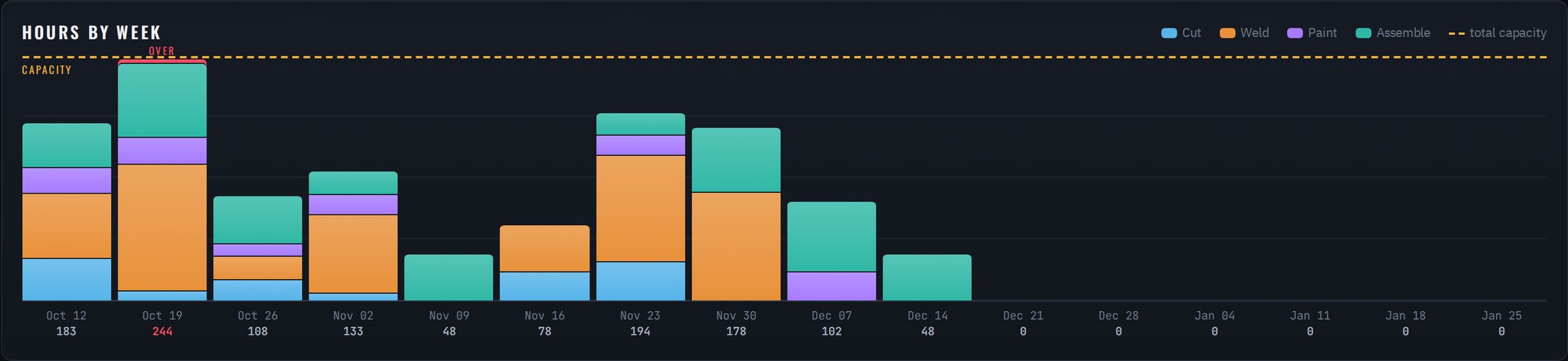
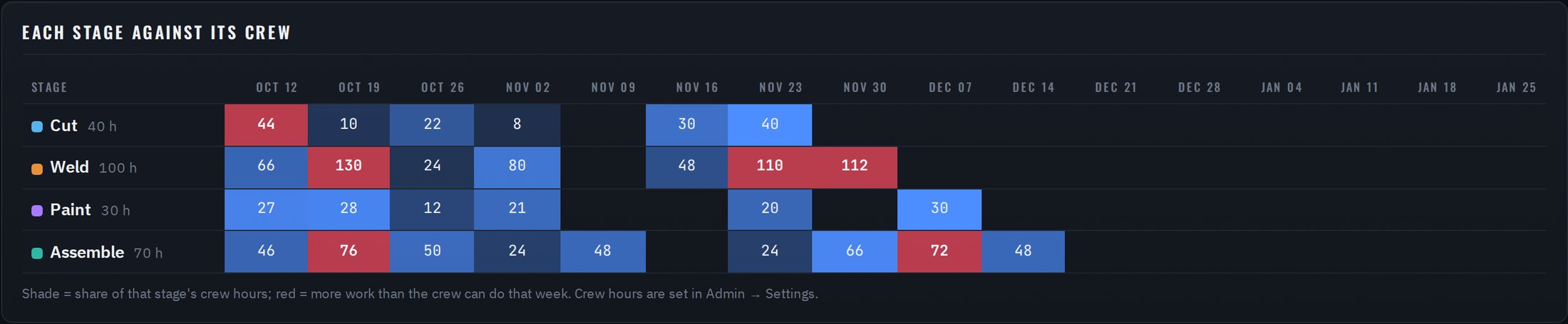
- Bottleneck = the stage over its crew most often in the next 8 weeks — where overtime or moving a man pays off.
- One stage red while others are light → move a man that week. Everything red → the board is over-sold.
- Crew hours per stage are set in Admin → Settings (section 12).
9Hours & Rippling
How hours get onto the board
- A new job is created → the board adds its PO to Rippling's PO list right away (e.g.
SM2100 · Hochstetler edger). - The crew clocks in on the Rippling app or kiosk and picks PO and Stage (Cut, Weld, Paint, Assemble, Design).
- Every 15 minutes the board reads the clocked time and puts it on that job and stage. The first hours on a stage mark it started.
- When the job ships, its PO in Rippling is renamed
SHIPPED — …so nobody clocks onto it.
Each card shows its Rippling status: In Rippling ✓, or a red line with the reason (the board keeps retrying). The Hours page shows the last read and has Read Rippling now.
Old job codes
Codes made by hand in the old form still count: PO, a dash, the stage — 4471-WELD, SM2073-CUT, 4471-ASM, 4471-PAINT, 4471-DESIGN. Spaces and capitals don't matter.
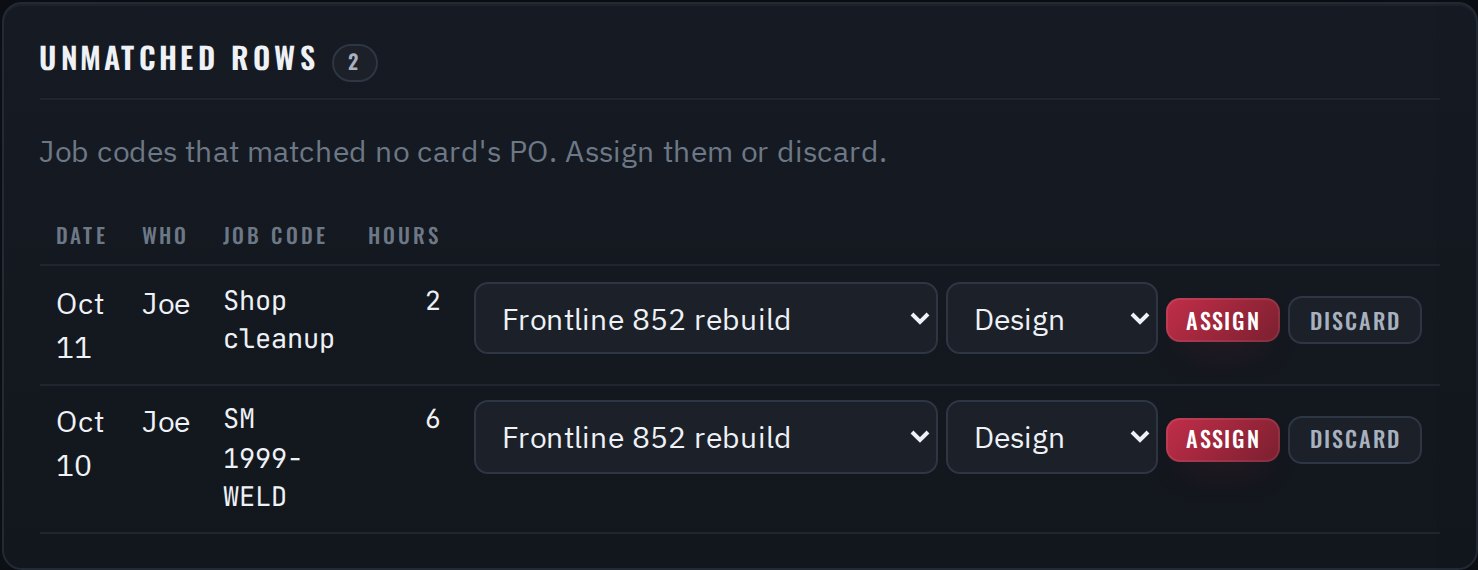
Unmatched rows
Time whose code matched no job — picked no PO, or an old code with a typo. For each: pick the job and stage → Assign, or Discard (shop cleanup etc.). Each shift shows up once, never again on the next read.
Before Rippling is connected
Hours → choose the Rippling CSV export → Import. Importing the same file twice doesn't double anything. Managers can also add hours on a job's page.
10Calendar
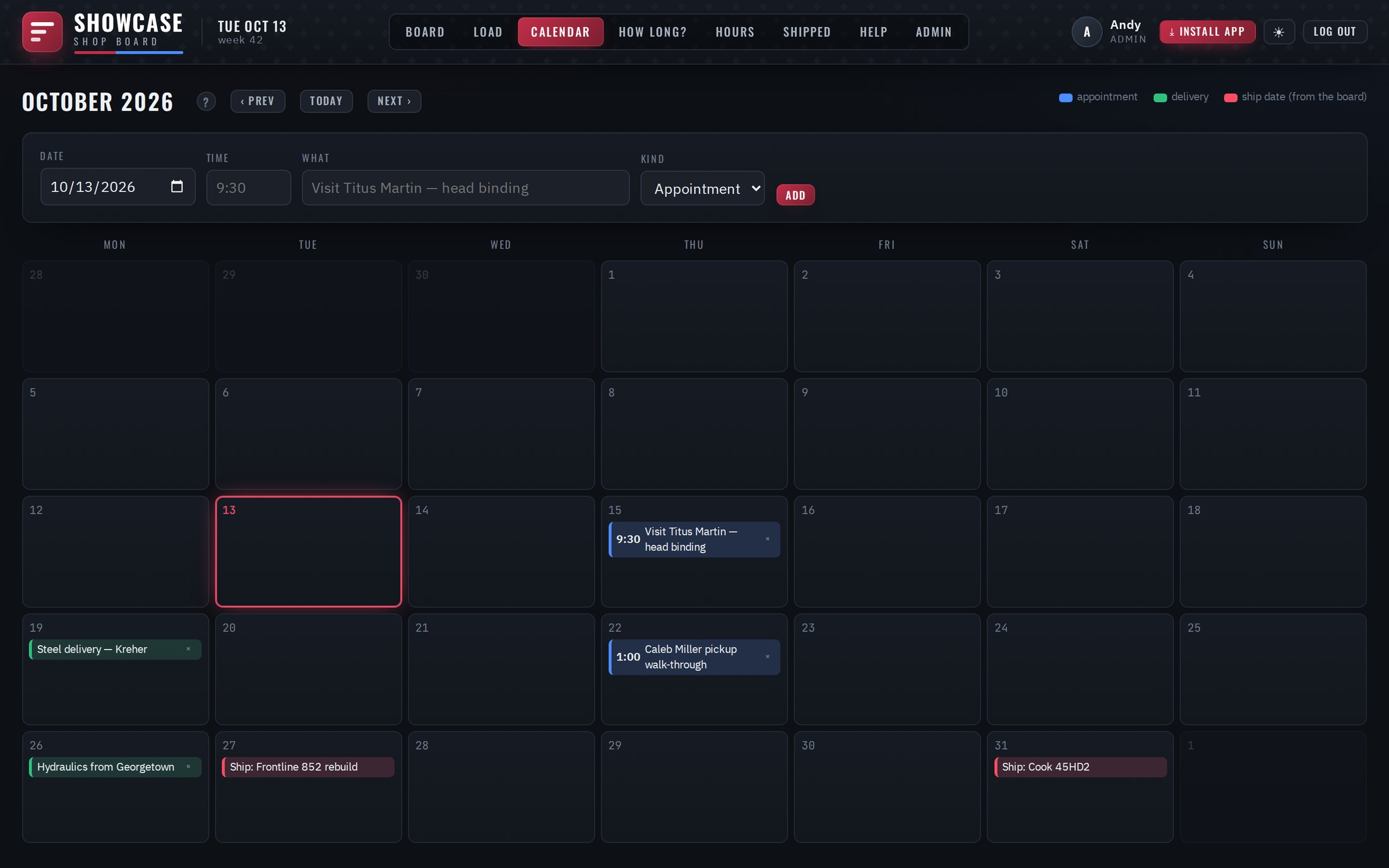
- In the bar on top set Date, optional Time, What, Kind → Add.
- Remove with the small ×. ‹ Prev Today Next › change the month.
Deliver-by dates appear by themselves; click one to open the job.
11Shipped jobs & learning
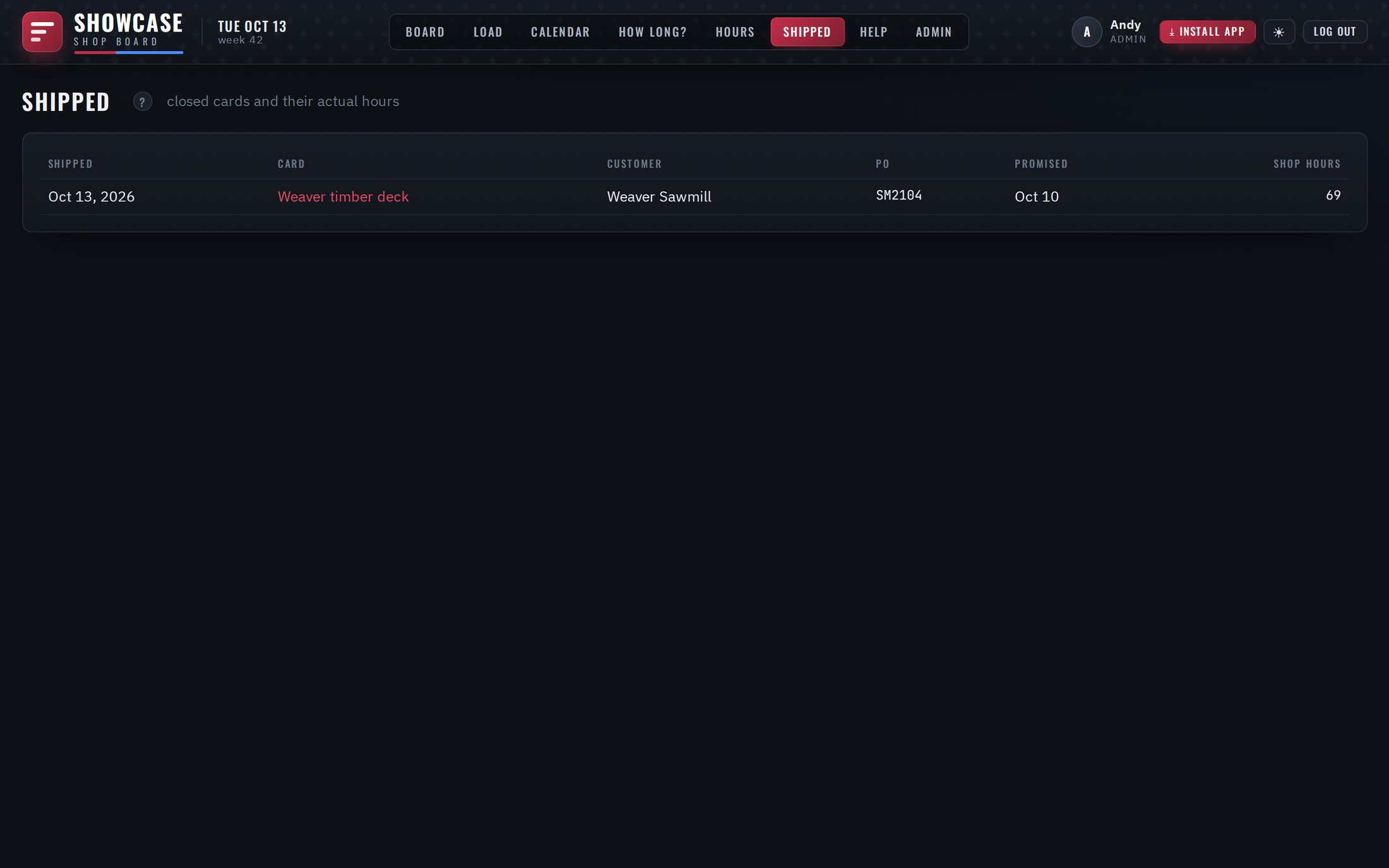
- Each machine type holds default Cut / Weld / Paint / Assemble hours and Design / Order days.
- A new job copies them from its units (or the brand average if none are picked).
- When it ships, what each stage really took — Rippling hours, and working days for Design and Order — is averaged into its types.
- After 3 shipped of a type its "est." tag drops: the numbers are learned, not guessed.
12Admin
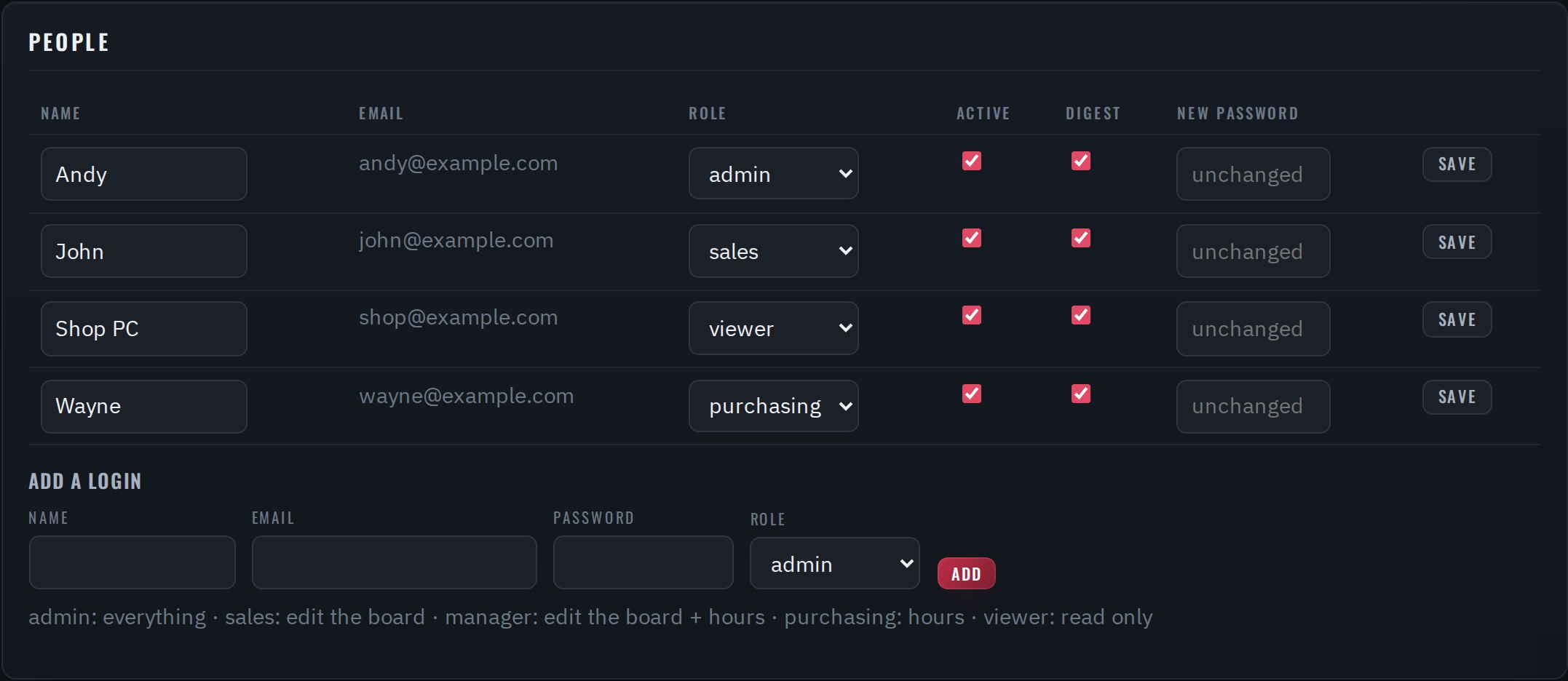
Give someone a login
- Admin → Add a login: name, email, a password (8+ characters), role → Add.
- Send them the board address, their email and the password.
- Reset a password — type a new one on their row → Save.
- Someone leaves — untick Active → Save. Their history stays.
Machine types
One row per kind of unit: name, brand, model code (used in serials), Design / Order days, Cut / Weld / Paint / Asm hours. Untick On to hide one. A green number = learned from that many shipped; est. = still a guess.
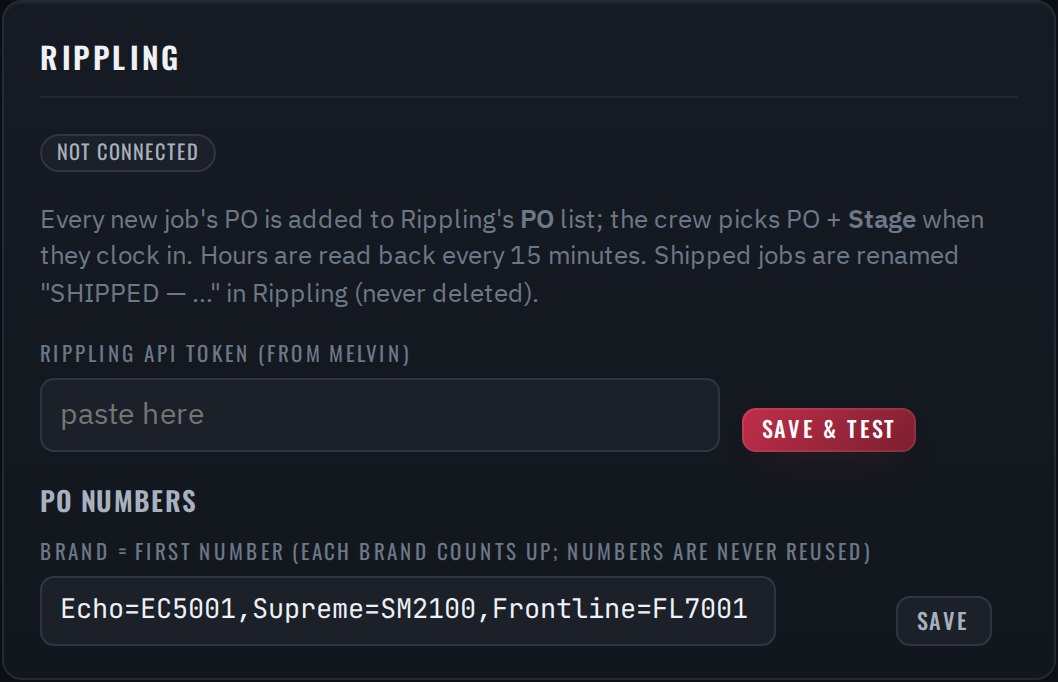
Rippling
- Melvin creates the API token in Rippling.
- Paste it under Admin → Rippling → Save & test.
- Sync now — the PO and Stage lists appear in Rippling with every open job.
The token is never shown again (only its last 4 characters). Disconnect stops the sync.
PO numbers
Echo=EC5001,Supreme=SM2100,Frontline=FL7001 — brand, letters, first number. Raising a first number skips ahead; numbers already issued are never reused.
Settings
| Setting | Meaning |
|---|---|
| Shop hours per week | Total capacity (240 = 6 men × 40). |
| Saturdays are workdays | Tick if the shop runs Saturdays. |
| Amber when over pace by % | A running stage turns amber when hours run this far ahead of time (20 %). |
| Hours per week by stage | Each crew: cut=40,weld=100,paint=30,assemble=70. Drives the Load page. |
| Design / ordering reminder | Days before shop start the reminder emails go out (40 / 30). |
| Default design / order days, stage hours | Used when there's no history at all. |
| Postmark token, From, Digest recipients | Email (section 13). |
The delivery buffer (3 working days between assembly and Deliver by) is the ship_buffer_days setting — ask Andy to change it.
API tokens, recent changes
API tokens connect other programs (such as Claude) to the board; shown once when created. Recent changes lists the last 50 changes on the board.
13Reminders & email
| When | To | Says | |
|---|---|---|---|
| Design reminder | 40 days before shop start | Admins | Design, ordering pages and DXFs are due. |
| Ordering reminder | 30 days before shop start | Purchasing | Parts on the ordering list should be on order. |
| Behind alert | The morning a job turns red | Sales + managers | Deliver by vs planned, and which stage. |
| Monday digest | Mondays 6:05 am | Digest ticked | Shipping this week · behind · starting in the shop. |
Checked every morning at 6:00. Each one is sent once per job. Mail comes from board@showcaseequipment.us and links straight to the job.
14The board's address
The board is at https://board.showcaseequipment.us (padlock, secure). The old address http://91.99.186.141 forwards there by itself,
so old bookmarks and QR stickers printed before the move keep working.
If you used the board before the move — once
- Open the board (old icon or address forwards).
- Log in again. Logins are tied to the address.
- If you installed the app from the old address: in its window ⋮ → Uninstall Showcase Board, then click ⤓ Install app on the board — now one click.
- On a phone that scans stickers: type your name once more.
15Troubleshooting
| Symptom | Likely cause | Fix |
|---|---|---|
| "Wrong email or password" | Typo, or login switched off | Retype. Still no? An admin resets it / ticks Active. |
| Can't drag / no + New card | Role is viewer or purchasing | Ask an admin if you need to edit. |
| A job won't move up | Its Deliver by is later, someone pinned another job above it, or Design/Order are open | Check the 📌s; Reset to auto; mark Design and Order complete when done. |
| New job says "N days short" | Shop is full before that date | Save it anyway (shows red) and talk to the customer, or drag it up if it really comes first. |
| Card: "Not in Rippling" | Rippling refused or was down | The reason is on the card; the board retries every 15 min. Admin → Rippling → Sync now. |
| Hours missing on a job | Crew picked no PO, or a wrong old code | Hours → Unmatched rows → Assign. Remind the crew to pick PO and Stage. |
| "Hours come from Rippling…" | Tried to import or type hours while connected | Fix the time in Rippling; the board picks it up within 15 min. |
| Job red but looks fine | A stage over its hours or past its end, or ships after Deliver by | Hover the red part for the reason. |
| Sticker "no longer valid" | A new code was issued | Print the job's current sticker. |
| Old bookmark asks to log in | The address changed to board.showcaseequipment.us | Log in once more; bookmark the new address. |
| Board shows old info / won't load | Asleep, offline, or updating (~1 min) | Refresh after a minute. Still down? Tell Andy. |
16Quick reference
New job
- + New card
- Name, customer, brand
- Deliver by (or 4–12 wk)
- Read ✓ fits / ✗ short
- Units if known → Create card
Shop crew
- Clock in on Rippling: PO + Stage
- Scan the sticker
- Start when you begin, Done when finished
- Wrong one? Undo
Move things
- Name up/down = priority 📌
- Bar sideways = move job
- Stage right edge = stretch
- Card → Reset to auto = undo
Colours
- running
- done · on track
- over pace · watch
- behind · late
- +6d slack
PO numbers
Supreme SM2100… · Echo EC5001… · Frontline FL7001…
Issued by the board — never typed.
Help
Login, role or password: Andy.
This manual: Help on the board — search box on top.